
Phantoms#
A phantom is a made-up subject with a known structure, from which Larmor computes the diffusion images that a scanner would record. Because you know what is in every voxel, a phantom lets you test a method against the truth.
The Phantom panel, which you open by clicking the spline icon on the left (Ctrl+5), edits a phantom for Larmor’s simulation module. A phantom consists of a voxel grid, tissues, fibre bundles (loaded from files or drawn in the 2D views), tissue maps and a scanning protocol. The panel opens as a window of its own, which you can move and resize, or dock beside the views like any other panel. When you run the phantom, the viewer simulates the diffusion images and opens the results as ordinary items. The File menu has the same commands: New Phantom, Open Phantom…, Save Phantom…, Run Phantom and Open Simulation….
A first simulation, step by step#
The editor has two layouts, and the switch at its top right chooses between them. Guided takes you through a first simulation one step at a time, while All settings shows every section of the editor at once, as an experienced user may prefer. The editor remembers the layout you chose, and you can also change it with View > Guided phantom editor or in the Settings panel. A new viewer starts in Guided.
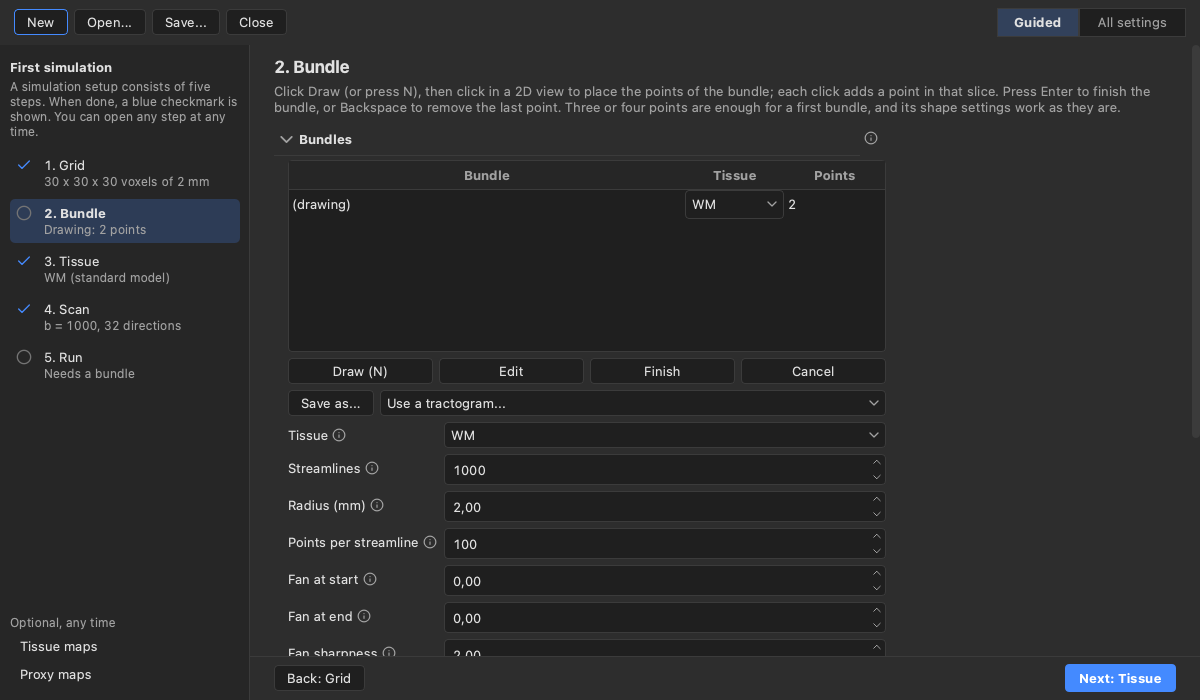
In Guided, a list on the left names the five steps of a simulation setup: Grid, Bundle, Tissue, Scan and Run. A blue checkmark next to a step shows that it is done. Under each step, a short line says where it stands, such as the size of the grid, the number of points of the bundle being drawn, or the b-value and the number of directions of the scan. The default grid, tissues and scan already work, so those three steps are ticked from the start, and a new phantom needs only a bundle before it can run.
The page on the right shows the step you are on. It has a heading, a few sentences on what the step does and whether its defaults are fine, and the sections of the editor that belong to the step. Next and Back at the bottom move between the steps, and clicking a step in the list opens it directly. The steps are a guide and not a lock, so you can go to any step at any time and in any order.
A first simulation follows the steps in their order:
Click New to start a phantom. It opens on the Grid step, and the grid works as it is, so click Next.
On the Bundle step, click Draw, place three or four points in a 2D view and press Enter to finish the bundle. The new bundle is filled with the WM tissue, a standard model of white matter. To fill it with another tissue, choose one in the bundle’s row of the bundles table.
The Tissue step edits the tissues themselves. You can keep them as they are.
On the Scan step, the default scan is a single-shell acquisition at b = 1000 s/mm^2 with 32 directions and no noise, which you can also keep. Add shell adds a shell to the table, and the fields around the table set the timings, the sequence and the noise.
On the Run step, Run starts the simulation once the steps are ready. If no output folder is set, it first asks for a folder to save the results in. The results open as items when the run ends.
Below the steps, under “Optional, any time”, the list also links to the tissue maps and the proxy maps, which a first simulation does not need. In All settings, the list folds into a row of the five steps above the sections, each with its check mark, and clicking a step scrolls to its section. Both layouts show the same fields, so a change made in one shows in the other.
Grid and tissues#
The Grid section sets the voxel grid of the phantom. You can type the size of a box in millimetres and a voxel size, then click Use this box, or you can take the grid of an image you have loaded. A new phantom starts on the grid of the main volume when there is one. The box of the grid is outlined in every view while you draw. At other times, Show the grid box in the Grid section, or View > Phantom grid box, shows or hides the outline, and a session remembers your choice.
The phantom starts with three tissues: white matter (WM), grey matter (GM) and cerebrospinal fluid (CSF). Each tissue is either a preset whose parameters you can change, or a list of compartments that you build yourself. A compartment is one pool of water with its own diffusion model, such as the water inside axons or the water around them. The presets are the standard model and NODDI (neurite orientation dispersion and density imaging) for white matter, SANDI (soma and neurite density imaging) for grey matter, and free water for CSF. NODDI spreads its neurites around the fibre direction, and its kappa parameter sets how tightly they follow it.
In the compartment table, each row picks one of these models:
the stick, the zeppelin, the ball, the powder-averaged stick and the sphere;
the Watson-dispersed sticks of NODDI, which use the kappa column;
the cylinder, which uses the radius column;
the dot, whose water does not move;
free water, whose share a run reports as the free-water fraction of its ground truth.
The bar below the table shows the fraction of each compartment, and the tissue is accepted only once the fractions add up to 1. When you change a tissue, every bundle that uses it changes with it.
A tissue map gives a tissue its share of each voxel from a loaded overlay, which must hold values between 0 and 1 on the phantom’s grid. Only a tissue without a fibre direction, such as GM, can have a map. The Background setting chooses the tissue that fills what is left of each voxel, or leaves that part without signal, and the same rule applies to it. The reason is that sticks, zeppelins, Watson-dispersed sticks and cylinders need the fibre direction that a bundle gives them, while the dot, the ball, free water, the sphere and the powder-averaged stick do not.
Drawing bundles#
To draw a bundle, click Draw or press N. Each click in a 2D view then adds a control point at that place in the view’s slice and moves the crosshair there, so the other views follow it. A click outside the grid box adds no point, and the status bar says why. Scrolling still changes the slice, and Ctrl+drag still pans. The bundle is drawn again from its points while you add them, at most once per frame. The following keys work only while you draw, so at other times they keep their usual meaning in Layers and in dialogs.
Key |
What it does while drawing |
|---|---|
N |
Starts a new bundle; the one being drawn is finished first |
Enter |
Finishes the bundle |
Backspace |
Removes the last point |
Escape |
Stops drawing; a new bundle is dropped and an edited one is kept as it was |
A finished bundle is an ordinary tractogram in Layers, so all the tractogram options apply to it. Its row in the bundles table chooses the tissue that fills it. When you select a bundle, the editor shows its shape (the number of streamlines, the radius, the fanning, the dispersion and the seed) so that you can change it, and Edit brings its points back into draw mode. The bundle keeps its place in Layers and its options while you edit it. You can also make a loaded tractogram a bundle of the phantom with Use a tractogram….
Proxy maps#
A full simulation takes a while, so the Proxy maps section can show three overlays that follow every edit without running it. The bundle fill map shows how much of each voxel the bundles fill: its first volume is all bundles together, followed by one volume per bundle. The tissue partition shows the share of each tissue in each voxel, with the background last. The expected b0 map shows the signal that a run without noise would give at b = 0, which lets you check the effect of a tissue’s T2 or proton density before you run.
Signal breakdown#
The Signal breakdown panel, which you open with the chart icon on the right (Ctrl+6), shows how the signal of one voxel comes about. It splits the signal into the factors that the simulation multiplies together and draws them as three stacked bars, with the total of each bar above it:
The first bar, labelled No decay, is the water in the voxel before any decay. It is each tissue’s share of the voxel times the fraction and proton density of each of its compartments.
The second bar, labelled T1/T2 decay with the echo time, is the signal after the T1 and T2 decay at the echo time. For a gradient echo, T2* takes the place of T2 in both the decay and the label.
The third bar, labelled Diffusion with the b-value, is the signal after the diffusion weighting of the chosen volume.
Each bar is split into the voxel’s compartments, which are named in plain words such as WM axons, GM soma, WM neurites, still water or CSF, and each bundle has colours of its own. When the scan has noise, a dashed line marks the noise floor, which is the mean magnitude of pure noise. The legend below the chart names the compartments, and when two bundles cross, each of its two columns lists one bundle. The chart lays itself out again as the dock gets wider or narrower.
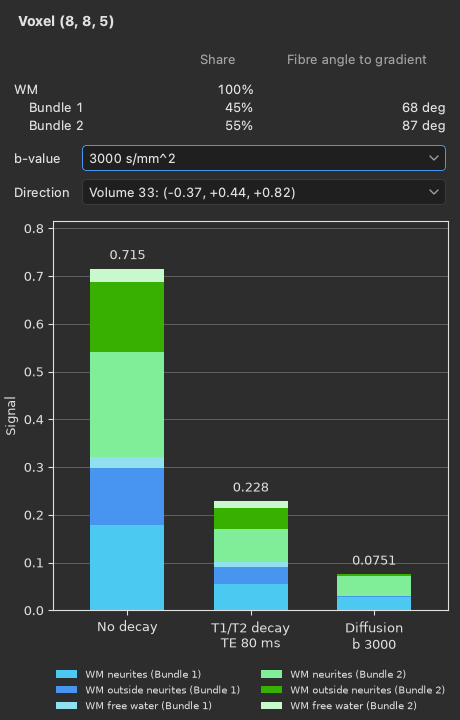
Above the chart, a heading names the voxel, such as “Voxel (42, 57, 30)”, and the panel’s title names it too. Below the heading, a small table lists what fills the voxel. Each tissue has a row with its share of the voxel, and a tissue that leaves the voxel empty is not listed. Under a tissue that fills bundles, each bundle has an indented row of its own, with the name it has in the Bundles table and its own share of the voxel, so two crossing bundles show as two rows. The last column of a bundle’s row gives the angle between the bundle’s fibres and the gradient of the volume chosen in the Direction list. At 0 deg the fibres run along the gradient and lose the most signal to diffusion, and at 90 deg they lose the least. The column is blank for the tissue rows and at b = 0.
The panel follows the voxel under the pointer in the 2D views. Clicking the phantom pins the panel to that voxel, which is then outlined in every view, and Escape unpins it so that it follows the pointer again. You can also right-click a voxel and choose Signal breakdown here, which opens the panel pinned to that voxel. The b-value and direction lists choose the volume of the scan that the third bar shows.
The panel updates whenever a tissue, a bundle, a tissue map or the scan changes, without running a simulation.
The bars and their totals therefore show at once what, for example, a longer echo time or a smaller soma radius
does to the voxel. The breakdown gives the same value as the noise-free image of a run, since both come from the
same compartment models. From Python, larmor.simulation.signal_breakdown computes the breakdown and
larmor.plot.plot_signal_breakdown draws the same chart.
Running and saving#
The Scan section sets the sequence, the echo and repetition times, the gradient timing, the shells (or a pair of bvals and bvecs files) and the noise. Run (Ctrl+R) checks the phantom and asks for an output folder if none is set. It asks before it replaces the outputs of an earlier run. The simulation then runs in the background, with its progress and a Cancel button in the status bar. A cancelled run opens nothing.
The output folder has the same contents as the one that lar simulate writes. When the run ends, the diffusion
images open as the main volume, the tissue masks open as overlays and the true fibre directions open as peaks.
The bundles then refer to the streamline files in the folder, so a session saved afterwards keeps everything.
Save… writes the phantom to a phantom file, and Open… reads it back. From the command line,
lar bv --phantom scene.phantom.json opens a phantom file, and lar bv --simulation folder opens a simulation
folder with its phantom in the editor. A saved session also keeps the phantom, and opening the session restores
the editor. A bundle that you are still drawing is not saved with the session, so finish it first.
The same steps from Python look like this:
from larmor.viewer import ProxyMap, Viewer

viewer = Viewer()
viewer.new_phantom((60, 60, 60), 2.0)
viewer.start_bundle()
for point in [(-25, 0, 0), (0, 5, 0), (25, 0, 0)]:
    viewer.add_bundle_point(point)
bundle = viewer.finish_bundle()
viewer.show_proxy(ProxyMap.FILL)
viewer.run_phantom("sim")