
Settings#
Settings > Settings, or the gear on the right (Ctrl+, or Cmd+, on macOS), opens the viewer’s preferences in a panel. A change applies at once and is saved, so the viewer starts with it next time.
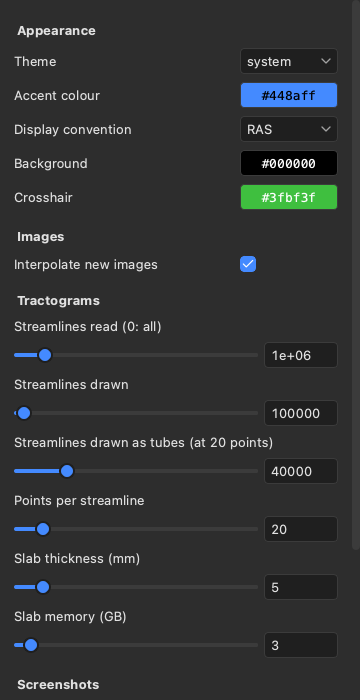
Appearance#
Theme: system (follows the computer’s light or dark mode, also when it changes), light or dark. Both themes keep the window’s panels neutral grey and the views black, so the panels around an image do not change how its contrast looks.
Accent colour: the one colour in the panels; it marks the selected item, the focused field, the selected view, checked boxes and sliders.
Display convention: RAS (the subject’s right on the right of the screen) or LAS (on the left); see The 2D views.
Background and Crosshair: the colour behind the images in the views, and the crosshair’s colour.
Images and tractograms#
Interpolate new images: whether images opened from now on start smooth (trilinear) or blocky (nearest voxel).
Streamlines read (0: all): a tractogram file with more streamlines is reduced to a random subset of this size when read.
lar bv --max-streamlinessets its own.Streamlines drawn: the most streamlines drawn of each tractogram, whatever its subset.
Streamlines drawn as tubes (at 20 points): how many streamlines of 20 points a tractogram set to tubes (Tractograms) may draw as tubes; more points per streamline allow fewer (at 200 points, a tenth as many). Past it the 3D view draws lines.
Points per streamline: how many points each streamline of a new tractogram keeps; more follow the curves better but draw slower.
Slab thickness (mm): the slab new tractograms start with: the 2D views show only the streamlines within it around the slice.
Slab memory (GB): the memory the 2D views’ slabs may take; past it, they are cut in a slower way.
Screenshots#
Screenshot scale (how many image pixels each screen pixel becomes), Information overlay in screenshots (the views’ labels and colour bars) and Transparent screenshots (a transparent background instead of the views’ colour): what the Screenshots panel starts with (Screenshots).
Graphics#
Lower resolution while moving draws the views at half resolution while you drag or scroll, then once at full
resolution when you stop. It is off by default, as on your own computer the views keep up at full resolution. Turn
it on when the viewer runs on a remote display, such as over ssh -X, where sending each image to your screen is
the slow part. It applies at once.
On a computer with several GPUs, GPU chooses the one the viewer draws with; it applies when the viewer starts again.
Agents (MCP)#
Port: where the viewer serves agents, on this computer only (8765 by default;
lar bv --mcp-portsets its own).Serve agents: starts or stops the server (Driving the viewer from an agent shows how to connect an agent). It is off when the viewer starts, unless started with
lar bv --mcp.URL and Token: what an agent needs, each with a Copy button. New token replaces the token; agents with the old one are refused. The token is kept in
mcp-token, beside the settings, readable by you only.
The settings are saved in viewer.toml, in ~/Library/Application Support/larmor on macOS,
~/.config/larmor on Linux (or under $XDG_CONFIG_HOME), and %APPDATA%\larmor on Windows.