
The 2D views#
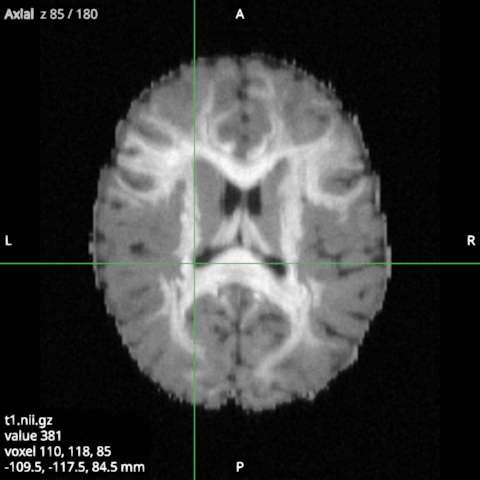
The axial, coronal and sagittal views each show one slice through the crosshair. Moving the crosshair in one view moves the slices of the others.
Moving around#
Mouse or key |
Does |
|---|---|
Click or drag |
Moves the crosshair there, and selects the view |
Scroll, or Up and Down |
Next or previous slice, one voxel of the main volume at a time |
Ctrl + scroll, or pinch |
Zooms about the pointer |
Ctrl++ and Ctrl+- |
Zoom in and out about the crosshair |
Ctrl + drag |
Pans |
R |
Shows the whole view again (zoom 1, centred) |
Ctrl is Cmd on macOS. The keys act on the selected view, whose thin frame is in the accent colour.
The crosshair and the readout#
The top-left corner names the view and its slice of the main volume, counted from 0 as the voxel is: “Axial z 124 / 260” is slice 124 of 260 along z. The text in the bottom-left corner is the readout: the main volume’s name, its value at the crosshair, the voxel (with the volume index last for a 4D image) and the position in mm. The letters at the edges give the orientation: R and L, A and P, S and I. X shows or hides the crosshair, and I the text, the letters and the colour bars; both are also in the View menu.
RAS and LAS#
By default the views follow the neurological convention (RAS): the subject’s right is on the right of the screen. The radiological convention (LAS) puts it on the left in the axial and coronal views. Change it with Display convention in Settings.
One view at a time#
The button in a view’s top-right corner, or a double click in the view, makes that view fill the window; do it again to show all four. The keys A, C, S and 3 do the same for the axial, coronal, sagittal and 3D views.