
Simulation#
Larmor simulates diffusion-weighted images of phantoms. A phantom is a voxel grid that tissues fill, where each tissue is a sum of compartments, such as a stick for the water inside the axons and a zeppelin for the water around them. Fibre bundles and tissue maps place the tissues on the grid. The simulation computes the signal of every voxel for a given scan and adds noise when asked to. Beside the images it saves the ground truth, which says how much of each voxel each tissue and bundle fills and where the fibres point.
What it is for#
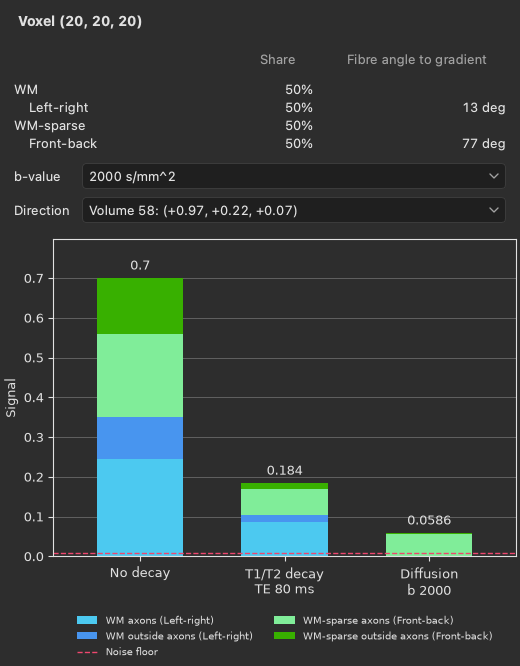
A simulation shows how the diffusion signal forms. The signal of a voxel is the product of several factors: the share of the voxel that each tissue fills, the fraction and proton density of each compartment, the T1 and T2 relaxation, and the diffusion attenuation of each compartment along the gradient. Larmor can split the signal of one voxel into these factors, so you can see what a longer echo time, a higher b-value or a different tissue does to it.
A simulation also helps to design a protocol. The same phantom can be scanned with different shells, numbers of directions, timings and noise levels, and the images and fits of each scan can be compared before any data are acquired.
Finally, a simulation gives a known answer for testing a processing pipeline. Since the true fibre directions and tissue fractions are saved with the images, the output of each step, such as the peaks of fitted FODs, can be compared with them voxel by voxel.
There are three ways to run a simulation: from the command line, from Python, and in the phantom editor of BrainViewer.
From the command line#
Larmor ships with a phantom called crossing, which has two fibre bundles that cross at 90 degrees. The following
command simulates it with noise and writes the images, their gradients and the ground truth into a new folder:
lar simulate crossing crossing-sim --snr 30 --seed 1
The same command runs a phantom file of your own in place of the name. The quick start goes through this run and opens the result in the viewer.
From Python#
The package larmor.simulation builds phantoms and scans, simulates them and
saves the results. The following code runs the same phantom from Python and saves it into another folder:
from larmor.simulation import example_phantom, save_simulation, simulate

loaded = example_phantom("crossing")
assert loaded.protocol is not None  # the phantom file holds its scan
result = simulate(loaded.phantom, loaded.protocol, snr=30, seed=1)
files = save_simulation(result, "crossing-python", bundle_names=loaded.bundle_names)
print(files.dwi[0], files.peaks)
loaded holds the phantom and the scan protocol stored with it. A phantom file can also be saved without a scan,
and then loaded.protocol is None. result holds the images with and without noise, and the ground truth, which
save_simulation writes next to the images. Passing bundle_names keeps the names of the bundles, Left-right and
Front-back, in the folder’s phantom file, so that the viewer shows the bundles by these names. The
simulation guide shows how to build a phantom of your own, with your own tissues, bundles
and scan.
In the phantom editor of BrainViewer#
The viewer has a phantom editor in which you draw bundles in the 2D views, choose the tissues and set the scan, and then run the simulation. The following command opens the phantom file that the run above saved:
lar bv --phantom crossing-sim/phantom.json
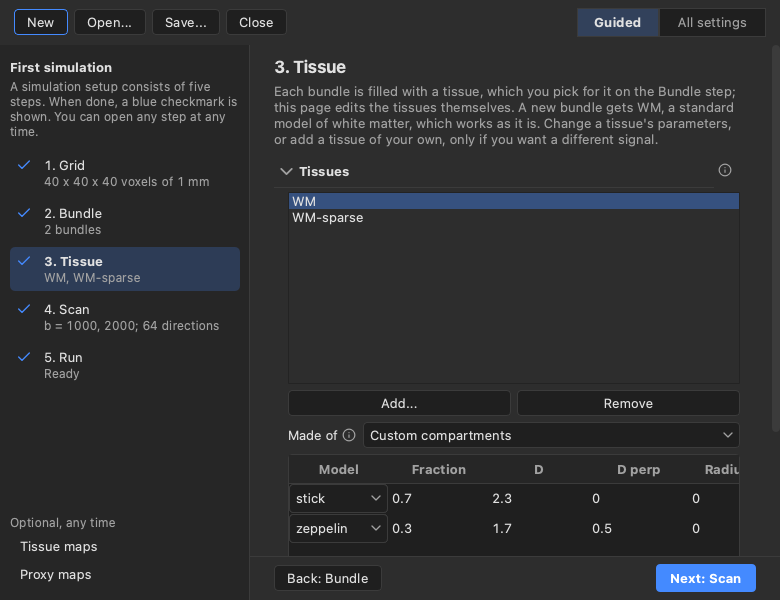
By default the editor shows its guided layout, which takes you through a first simulation in five steps: Grid, Bundle, Tissue, Scan and Run. Each step has a short explanation and a check mark once it is ready. When the run ends, the images, the masks and the true fibre directions open in the viewer.
The Signal breakdown panel, which you open with Ctrl+6, shows how the signal of the voxel under the pointer comes about, as three stacked bars. It follows every change you make in the editor without a new run.
The viewer’s Phantoms guide describes the editor and the panel in full.
Where to go next#
The simulation guide covers building a phantom in Python, the phantom file, the options of
lar simulate and every file of the output folder. The Background page
Simulating diffusion MRI describes what the simulation computes and what it leaves
out, with the papers of its models. The gallery has three runnable examples: one simulates
two crossing bundles, one splits
the signal of one voxel into its factors, and one
checks a pipeline against the ground truth by comparing fitted
FOD peaks with the true fibre directions.